













Corporate Support Services| Jack@ittracking.com

Advanced Features
All of these features plus the Security Features are now included with no price increase.
Some of the features, such as Secure Log In and User Access are features which most users will not requiire or use. Therefore they are not included in the Standard
Edition.
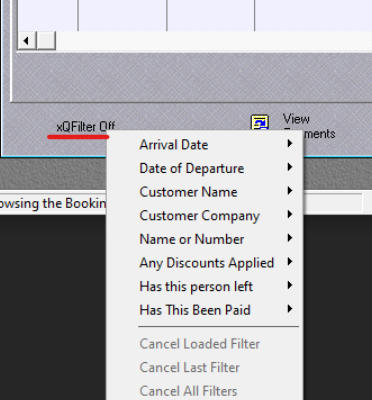
xQFilter allows you to FILTER records so that you only see the records which meet specific criteria.
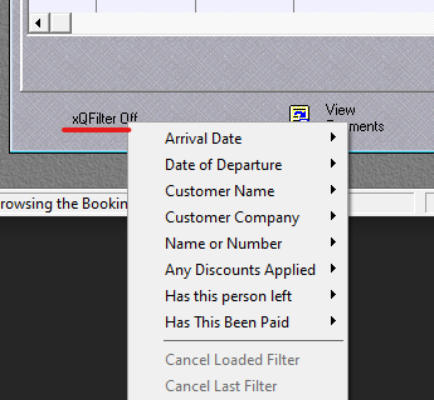
For example on the bottom left of the Current Bookings list you will see xQFilter.
You access this by pressing Ctrl+Q on your keyboard and the list of selections by which you can filter the
records shows
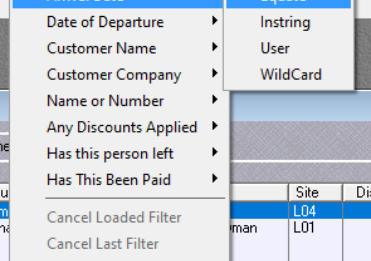
On Arrival Date, or any of the other choices, selecting Equate will show you
ONLY the records with the Arrival Date of the HIGHLIGHTED record.
You can more than one Filter in place at a time. The xQFilter will show you
how many filters are active.
You can ‘back out’ of the filters one at a time by pressing Esc on your
keyboard.
SendTo is a very popular and useful feature. Selecting this will offer you the opportunity to Send the Filtered List To a PDF, html, text, or create a file.
To use this feature we suggest you ‘Filter’ the List using xQFilter first. This will show then only the records you want to include in the document.
Note: If you want to send all of the records then sort them first and selece SendTo and follow the instructions
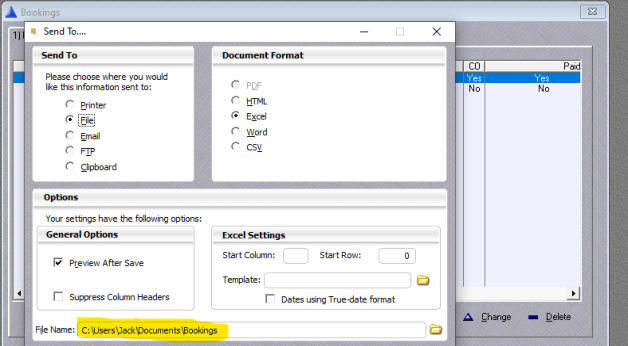
There several choices after you select the SendTo button
In the Send To Options you have
Printer, File, Email, FTP, and Clipboard
Document Format
If you select Excel, you must have Excel installed on your
computer.
Note: In the File Name: option you may want to change the
location
And with Excel add the .xls extension
Click Preview After Save to view the document after is is
Sent
Click Save to complete the operation.
Click Here for a Help Video
Networking allows more than one user to use Bookings at a time. Typically one or two people need to use the program. For example you may
have one person taking Reservations while another may be entering the actual revene of the gig.
Note: This application can run across a local network (two or more computers connected with a wired connection. Wireless operation is also
applicable, but a LOT depends on your wireless network)
To ‘run Bookings across a network’ Install the installation program on a Folder on a ‘Shared Drive’, then create a shortcut on each of the
computers where users will need to access Bookings by using a RIGHT click to drag and drop Bookings.exe to the computers of each user and
selecting ‘Create Shortcut Here’ You must map a drive from the Client computer to the shared drive on the ‘Server’ computer.
Email or text me if you need further clarification or help with this.
Security in Bookings refers to internal application security, often referred to a User Access Level. For example, you may only want one person to be able to Create, Make, and Run
Reports - such as an Accounting Department. While others can have access to all the other parts, like entering gig, or Venue information, and so forth.
You can have the ability to know who is logged in and when…things like that.









Corporate Support Services| Jack@ittracking.com


Advanced Features
All of these features plus the Security Features are now included with no price increase.
Some of the features, such as Secure Log In and User Access are features which most
users will not requiire or use. Therefore they are not included in the Standard Edition.
xQFilter allows you to FILTER records so that you only see the records which meet
specific criteria. For example on the bottom left of the Current Bookings list you will see
xQFilter.
You access this by pressing Ctrl+Q on your keyboard and the list of selections by which
you can filter the records shows
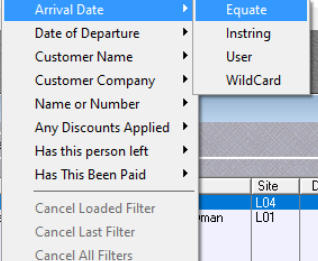
On Arrival Date, or any of the other choices, selecting Equate will show
you ONLY the records with the Arrival Date of the HIGHLIGHTED
record.
You can more than one Filter in place at a time. The xQFilter will show
you how many filters are active.
You can ‘back out’ of the filters one at a time by pressing Esc on your
keyboard.
SendTo is a very popular and useful feature. Selecting this will offer you the
opportunity to Send the Filtered List To a PDF, html, text, or create a file.
To use this feature we suggest you ‘Filter’ the List using xQFilter first. This will
show then only the records you want to include in the document.
Note: If you want to send all of the records then sort them first and selece
SendTo and follow the instructions
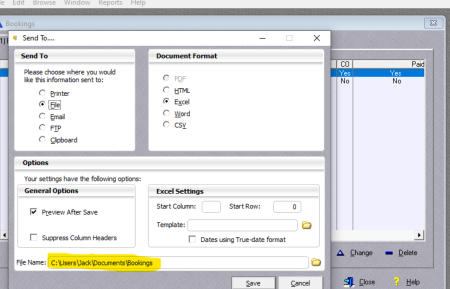
There several choices after you select the SendTo button
In the Send To Options you have
Printer, File, Email, FTP, and Clipboard
Document Format
If you select Excel, you must have Excel installed on your computer.
Note: In the File Name: option you may want to change the location
And with Excel add the .xls extension
Click Preview After Save to view the document after is is Sent
Click Save to complete the operation.
Click Here for a Help Video
Networking allows more than one user to use Bookings at a time.
Typically one or two people need to use the program. For example you
may have one person taking Reservations while another may be entering
the actual revene of the gig.
Note: This application can run across a local network (two or more
computers connected with a wired connection. Wireless operation is also
applicable, but a LOT depends on your wireless network)
To ‘run Bookings across a network’ Install the installation program on a
Folder on a ‘Shared Drive’, then create a shortcut on each of the
computers where users will need to access Bookings by using a RIGHT
click to drag and drop Bookings.exe to the computers of each user and
selecting ‘Create Shortcut Here’ You must map a drive from the Client
computer to the shared drive on the ‘Server’ computer.
Email or text me if you need further clarification or help with this.
Security in Bookings refers to internal application security, often referred
to a User Access Level. For example, you may only want one person to be
able to Create, Make, and Run Reports - such as an Accounting
Department. While others can have access to all the other parts, like
entering gig, or Venue information, and so forth.
You can have the ability to know who is logged in and when…things like
that.